Tag: Alerts
July 23rd, 2010
This is one article in the larger Troubleshooting SharePoint Alerts guide
Problem
Task, Project Task and Issues lists have a “Send e-mail when ownership is assigned” feature.
When you use Item-level Permissions and set Read Access to Only their own these emails no longer work.
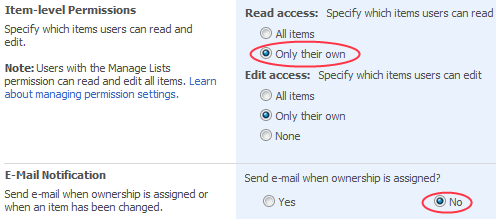
You can’t select both Read Access = Only their own and “Send email when ownership is assigned”
It appears that when you go back to Settings > Advanced Settings the Send Email when Ownership is assigned radio is set back to No when using Read Access = Only their own.
Why
Speculating here – I think that its because its very possible to set this up so the owner is not the assigned to person so you shouldn’t send an email to someone who shouldn’t be able to read it (and remember that when you re-assign a task an email goes out to both the old assignee and the new assignee) so rather than deal with these tricky scenario they just decided to disable it altogether.
Verified with
WSS3.0 12.0.0.6535 (SP2 + April 10th Cum Update)
References
Tags: Alerts, Troubleshooting
Posted in Troubleshooting Alerts | 1 Comment »
November 29th, 2009
This part of the Troubleshooting SharePoint Email Alerts guide covers how to verify that the SharePoint Timer jobs that send these alerts are running correctly.
If you are getting the Initial confirmation emails but not the Alerts emails then this may be the culprit.
Its probably the least understood part of the troubleshooting process; reading through the newsgroups/blogosphere you will notice lots of posts explaining how something seemingly random like disabling and enabling alerts fixed someone’s problem, who said Reboot? 😉 – but not another.
But hey, whilst its nice to understand why something worked – sometimes we just need to get it working!
If its not running try and start it. Check the Windows Event logs for problems – any problems are almost certainly to do with the account its running under and permissions given.
Check the Timer Jobs Status in SharePoint Central Admnistration
SharePoint 3.0 Central Administration > Operations > Timer Job Satus
Check for any columns where status != Succeeded and progress < 100% for clues. Check the last Started time is in the range you would expect (different jobs run on different schedules, check the Timer Job Definitions)
Use STSADM to verify properties
Note – To add to STSADM’s to paths use SET PATH=%PATH%;"c:Program FilesCommon FilesMicrosoft Sharedweb server extensions12BIN"
STSADM -o getproperty -url http://YourSiteURL -pn alerts-enabled
You should see <Property Exists=”Yes” />
STSADM -o getproperty -url http://YourSiteURL–pn job-immediate-alerts
You should see something like the default (but can be changed) <Property Exists=”Yes” Value=”every 5 minutes between 0 and 59” />
Use STSADM to reset properties
Some users have reported that even though these properties are listed correctly above, simply resetting them solved the problem. Be aware, some but not all have reported that this can remove existing alerts.
stsadm –o setproperty –url http://YourSiteURL –pn alerts-enabled –pv False

stsadm –o setproperty –url http://YourSiteURL –pn alerts-enabled –pv True

stsadm –o setproperty -url http://YourSiteURL –pn job-immediate-alerts –pv “Every 5 minutes between 0 and 59"
Reference for alerts-enabled and job-immediate-alerts properties
Use STSADM to re-register the alert templates
Again, some people have reported that this works with no agreement on the cause.
stsadm -o updatealerttemplates -url http://YourSiteURL
   -f "c:Program FilesCommon FilesMicrosoft Sharedweb server extensions12TEMPLATEXMLalerttemplates.xml"
   -LCID 1033

Where LCID is your languages Locale ID, 1033 is English – US
Reference for updatealerttemplates operation
Other things to look at
See Steve Chen and harikumh’s posts where they talk about checking through ULS jobs and the database tables that underpin SharePoint Alerts.
- ImmedSubscriptions (Alerts for emails that are sent immediately when changes occur)
- SchedSubscriptions (Daily or weekly scheduled alerts)
- EventLog (Events for which only non-immediate alerts exist)
- EventCache (Events for which users have requested alerts. WSS inserts events into this table as they occur)
- TimerLock (Records the server that processes the timerjobs)
Of course if you get to this stage you may want to consider placing a call to Microsoft Product Support.
Further reading
KB942989 If you back up a SharePoint web application and then restore it t a new farm, some SharePoint timer jobs are not restored successfully – now fixed in Post Service pack 1 hotfix 941422 Jan 31st 2008 and subsequent cumulative updates.
Steve Chen – blogs.technet.com/steve_chen – Alerts in SharePoint (Troubleshooting MOSS/WSS)
Harikumh – Troubleshooting Alerts
Tags: Alerts, Timer Jobs, Troubleshooting
Posted in Troubleshooting Alerts | 13 Comments »
November 29th, 2009
Problem
Consider the following scenario. You perform a database migration to upgrade Microsoft Windows SharePoint Services 2.0 to Microsoft Windows SharePoint Services 3.0. To do this, you deploy Windows SharePoint Services 3.0. Then, you add the content databases to the Web applications in the new Windows SharePoint Services 3.0 environment.
However, after the migration, Windows SharePoint Services 3.0 does not send e-mail notifications when content changes in a migrated list or in a migrated document library. Users experience the following symptoms:
- Users do not receive e-mail notifications for existing alerts for a list or for a document library that was migrated from Windows SharePoint Services 2.0.
- Users do not receive e-mail notifications for new alerts that they create for a list or for a document library that was migrated from Windows SharePoint Services 2.0. To receive e-mail notifications, the user must first delete the existing alert. Then, the user must create a new alert.
Cause
This issue occurs if the URL of the Windows SharePoint Services 2.0 server differs from the URL of the Windows SharePoint 3.0 server. For example, this issue occurs if the URL of the Windows SharePoint Services 3.0 server is http://ServerNameVersion3, and the URL of the Windows SharePoint Services 2.0 server is http://ServerNameVersion2.
The ImmedSubscription table in the content database has a Siteurl column. If the value in the Siteurl column does not match the URL of the Web application, Windows SharePoint Services does not send e-mail notifications when content in a list or in a document library changes.
Fixes and References
KB936759 – E-mail notifications for alerts are not sent when content in a migrated list or in a migrated document library changes after you perform a database migration to upgrade to Windows SharePoint Services 3.0
Tags: 2003, Alerts, Troubleshooting, Upgrade, WSS2
Posted in Troubleshooting Alerts | No Comments »
November 29th, 2009
This part of the Troubleshooting SharePoint Email Alerts guide covers situations where you are getting emails for some users but not for others.
If :-
- The users that do/do not get alerts can be separated by email domain
- Its intermittent i.e. users will sometimes get email alerts but sometimes not, for the same list/list item.
(Not to be confused with users who always get alerts for some lists/list items, but never for others)
Then the culprit is probably the email infrastructure.
As always the wild card is spam filtering and email rules – so thoroughly discount these first!
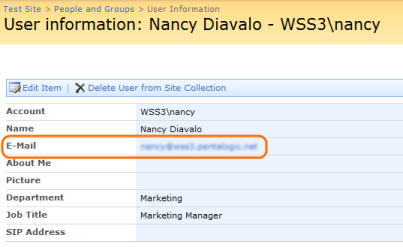
Check the People and Groups list for a correct email address.
Check the site collections people and groups list for a correct email address.
Don’t assume this is correct and skip this step, yes I know its correct in AD but seriously, don’t skip this!
Also be aware that site collections (even in the same web application) are independent and have there own user lists – you may have to check each one.
Site Actions > Site Settings > People and Groups > All People. Find the users and check the email address is correct.
Check the list Permissions
The initial email alert confirmation is sent out regardless of the permissions on the list. Subesquent alert emails are ‘security trimmed’ i.e. they are only sent out if the users has at least read permissions on the list an the list item that would have triggered the email.
- Does the site inherit permissions from the site collection?
- Check List Settings >Permissions and Management >Permissions for this list
- Does this list inherit permissions from its parent web site?
- Go back to List Settings > General Settings > Advanced Settings
- Under Item-level permissions are users only allowed to Read their own items?
- Go to the list view. Click on an item and select Manage Permissions
- Does this list item inherit permissions from its parent list? If not then does the user have permission on this list item?
To verify; check the user in question can open both the list and the item in question from SharePoint.
You can also inspect Central Administration > Operations Diagnostic Logging for clues such as
"Alertsjob results for *** delivery: 10 prematches, 10 passed filtering, 8 of 10 passed security trimming..."
See Further Reading below.
Further Reading
http://patrickfeltz.spaces.live.com/blog/cns!41A4F8DC87858F8F!197.entry
Tags: Alerts, Troubleshooting
Posted in Troubleshooting Alerts | 4 Comments »
November 27th, 2009
This part of the alert troubleshooting guide will talk you through the steps necessary to verify that emails can be successfully routed from your SharePoint server to the users mailbox.
You should have first read the introduction so you know the difference between the confirmation Emails and Alert emails and understand why :-
- Even if you get one of those you may still need to verify how your email setup is configured.
- You need to check each WFE and your index server
You may also want to read this short SMTP primer if you are new to SMTP and related email technologies.
Sending test emails
First check the email settings in SharePoint central administration are correct (SharePoint Central Administration > Operations > Outgoing Emails Settings) – note the Outbound SMTP server, From and Reply To addresses.
Use these settings to send some test emails using a tool like the SMTP Test Tool or Telnet on your SharePoint servers to send some test emails.
If you don’t receive the emails you expect verify.
- Does the SMTP server permit connections (relay’s) from your SharePoint servers?
- Is the destination SMTP server configured to deliver emails or relay them to another SMTP server and if so is it working?
- Is there anything that may block SMTP transmissions on port 25 (common to stop mass mailing worms/viruses). For example :-
- A firewall running on or in between the SharePoint server and the SMTP server
- Antivirus software
- Remember that if your security blocks SMTP transmissions based on process or account then test tools such as Telnet or SMTP Test tool will be a different process and will often be running under a different account to SharePoint and the timer service.
- Does your SMTP server require a username/password or SSL?
If you do get the emails you expect from these test tools
- Verify that you haven’t got any anti-virus or other security in place that could allow these test messages through but still block the ones from SharePoint – see “Is there anything that may block SMTP transmissions…” above
- Go back to the flowchart and continue onto the next step
You are able to send test emails to some users, but not others
(Note – this section does not apply to emails sent by SharePoint but only to test emails sent using a tool like SMTP Test tool or telnet – see above)
The good news is that you know in this case that its not a problem with SharePoint – its time to bring in whomever is an expert on your email infrastructure but a few tips to get you started :-
- Is this user’s email is being delivered successfully from other sources, what about external email addresses such as hotmail / gmail?
- This can help narrow down the problem between problems on the sending side an receiving side.
- Do emails to users on the internal domain get delivered and external email addresses fail (or vice versa) – in which case you need to look in detail at your email infrastructure to determine where the problem lies.
As always the wildcards are SPAM filters and email auto processing rules – always suspect these first!
Tags: Alerts, SMTP, Troubleshooting
Posted in Troubleshooting Alerts | 7 Comments »
November 27th, 2009
To make best use of the guide to troubleshooting why SharePoint Alert emails stop working its helpful to have an little understanding of what is going on under the covers.
For our purposes Email Alerts can be split into two types
Confirmation Emails
When you first setup an alert a confirmation email is sent to the recipient of the alerts.
This email is sent immediately from the Web Front End (WFE) serving the page at that time and running under the Identity that the IIS worker process (w3wp.exe) is using.
Email Alerts
The “Windows SharePoint Services Timer” service (owstimer.exe) is responsible for various jobs including sending out email alerts
By default this runs every 5 minutes – this means that even when you set “Send e-mail immediately” its not really immediately, there could be a short wait for your emails to be sent.
What does mean for Troubleshooting?
These two types of email are being sent at different times from different components of SharePoint and often using different Identities running on different servers.
(Tip – if you are brave you can check the TimerLock table to see on which server your various timer jobs will run)
So just because you get the Confirmation Emails you can’t assume that the Email Alerts will be work (and vice-versa) :-
- There may be a problem stopping the SharePoint timer job running that doesn’t effect the confirmation emails.
- There may be a problem with the configuration of the alerts that only effects the alert emails
- Does your email infrastructure may not allow the emails to be relayed from the server the timer job runs on but does allow the WFE
- Does your anti-virus software stop emails being sent from the server/process (owstimer.exe) or even user identity that the timer service jobs run under but allows the confirmation emails
You get the idea! For troubeshooting purposes you should treat them quite separately.
Tags: Alerts, Primer, Troubleshooting
Posted in Troubleshooting Alerts | 4 Comments »
November 26th, 2009
If the main guide for Troubleshooting Alert Emails in SharePoint (WSS/MOSS) doesn’t help you solve the problem then you may find the answer in one of these posts – come back and post a comment and I’ll update the guide for others.
Alerts in Windows SharePoint Services
Microsoft official documentation – Alerts Overview, Default timer interval, predefined alert templates …
How to Troubleshoot Alerts in WSS 3.0 / MOSS
The most common issue in alert is the user will get the initial email, but will not get when changes are made to the list where he configured the alert. Check the following …
How to troubleshoot Alerts in SharePoint
had built this farm a little over a year ago and all of the sudden, alerts stopped working…. This is happening to everyone… both new and old alerts.
Troubleshooting MOSS Alerts
“Alert not working” is the most common issue in MOSS. People tend to forget the basic troubleshooting and jump directly into advance troubleshooting…
Alerts in SharePoint (Troubleshooting MOSS/WSS)
I think one of the most reported and popular issues within SharePoint Server 2007 / WSS
MOSS Alerts – Error Troubleshooting
When setting up MOSS Alerts or Tasks you get the following error:
The following users do not have e-mail addresses specified: Username. Alerts have been created successfully but these users will not receive e-mail notifications until valid e-mail addresses have been provided
Tags: Alerts, Troubleshooting
Posted in Troubleshooting Alerts | No Comments »
November 26th, 2009
This is one article in the larger Troubleshooting SharePoint Alerts guide
Problem
You are unable to open the alert messages if :-
- You have a mailbox on a server that is running Microsoft Exchange Server 2003.
- You use Microsoft Office SharePoint Server 2007 to send a notification message to the mailbox.
- You try to open the SharePoint Server 2007 notification message in Microsoft Office Outlook 2007.
- Outlook 2007 is running in Cached Exchange Mode.
References
To Fix
or
Fixed in
- Microsoft Exchange Server 2007
Tags: Alerts, Troubleshooting
Posted in Troubleshooting Alerts | No Comments »
October 17th, 2009
This is part 3 of the series on Troubleshooting Email Alerts in SharePoint and you may want to review part one.
This section is dedicated to problems where your are getting the emails you expect but they are incorrect in some way.
Tags: Alerts, Troubleshooting
Posted in Troubleshooting Alerts | 5 Comments »
October 17th, 2009
This is one article in the larger Troubleshooting SharePoint Alerts guide
Problem
Task lists can send an email notification when a task is assigned or changed (Settings > Advanced Settings > E-Mail Notification).
If you modify the Assigned To column of the task list to “Allow multiple selections” then the email may be sent to random, incorrect recipients – some names will be crossed out (strike-through) in the email.
References
To Resolve
This is a known issue and was fixed in Windows SharepPoint Services 3 Hotfix (KB948945 21st February 2008)
“On a SharePoint Server 2007 site, you modify a task in a task list. When you do this, users other than the users who are assigned to the task receive the notification e-mail message for the change.”
This fix is believed to have been included in
Tags: Alerts, Primer, Recipients, Troubleshooting
Posted in Troubleshooting Alerts | No Comments »
Previous page