Tag: OOTB
September 21st, 2009
Alert Me Tricks for Power Users
- The Alert Me functionality is crucial in that it provides a means of automatically communicating to employees what is happening in a company using SharePoint via email alerts.
- Employees that are well versed in Alert Me power user tricks can greatly increase their productivity.
Limiting what you get Alerted on
- When configuring an alert for a whole list, selecting anything changes and send email immediately can result in an overwhelming amount of email.
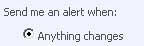
- Likewise selecting anything changes and send a weekly summary can result in a rather large summary with information that is irrelevant to a given user.

Setting up Alerts for an Individual List Item or a Folder
- You can begin to focus your alerts by setting up alerts for an individual list item or folder.
- To create an alert on a documents folder right click on the folder and click on the Alert Me menu item.
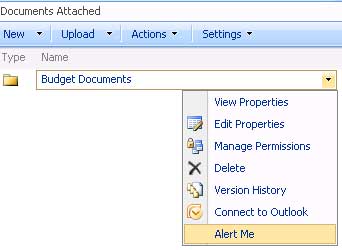
- You can then for example get alerts when a document is added, modified or deleted within the folder.
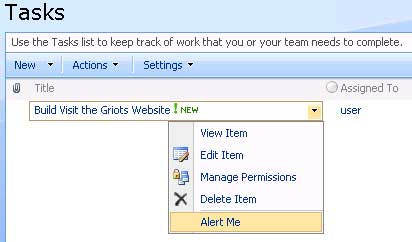
- To create an alert for one item on a list you can right click on item and click on the Alert Me menu item.
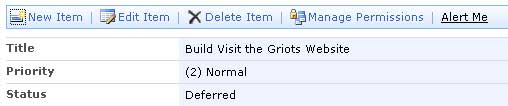
- Alternatively if you have clicked on the item and you are currently viewing the item, you can click on the Alert Me link to create an alert for that item.
Setting up Alerts on a View of a List
- Although setting up an alert for an individual item may be required on occasion, spending time setting up alerts on each individual list item you are interested in may not be an effective use of time.
- The most powerful way to refine the alerts you are getting is to set alerts based on a view.
- You can then dynamically receive alerts on items that are relevant to a views configuration of your choice.
High Priority Tasks Assigned to me and Modified by Someone Else
- When a view is created by a user it can be selected from the view pull down menu such as in this example a view called “High Priority Tasks Modified Not by Me”.
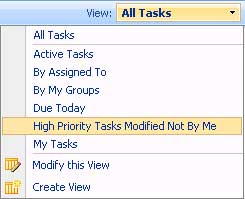
- The “High Priority Tasks Modified Not by Me” configuration in the modify this view page include the following:
- the status is not completed
- the priority is high
- the items has been modified by someone other than me
- the item is assigned to me
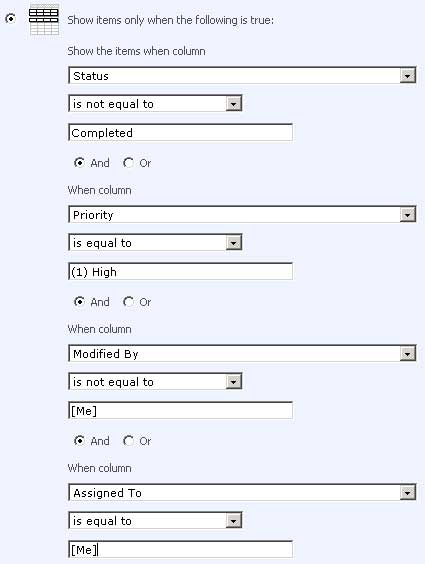
- Such a view can provide alerts targeted on changes to tasks that you really need to see.
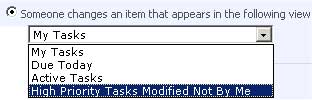
- Then with a view created, when creating an alert, the alert can be configured to receive alerts based upon that view.
Modifying Existing Alerts In SharePoint
- To modify an existing email alert for a SharePoint list click on the Actions pull down menu on any SharePoint list such as Calendar or Tasks and click on the Alert Me menu item.
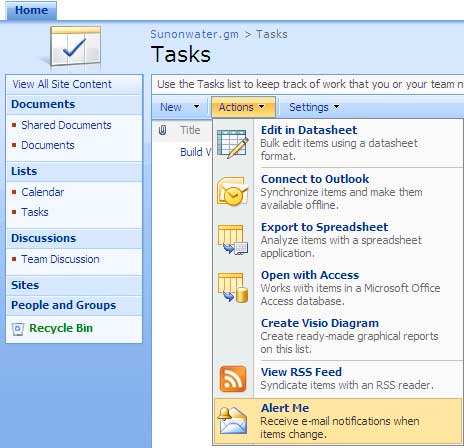
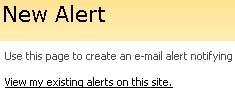
- The Alert Me webpage allowing you to configure an email alert will open.
- Click on the view my existing alerts link.
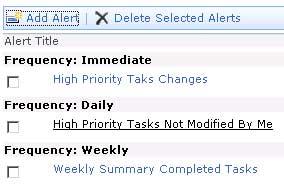
- The My Alerts on this Site page will open where you can click on an alert from the list to make modifications to it.
Modifying Existing Alerts In Outlook
- This image is of an email alert in Outlook 2007 for a high priority item in progress that is assigned to John G. Taylor and modified by Greig M Stevens.
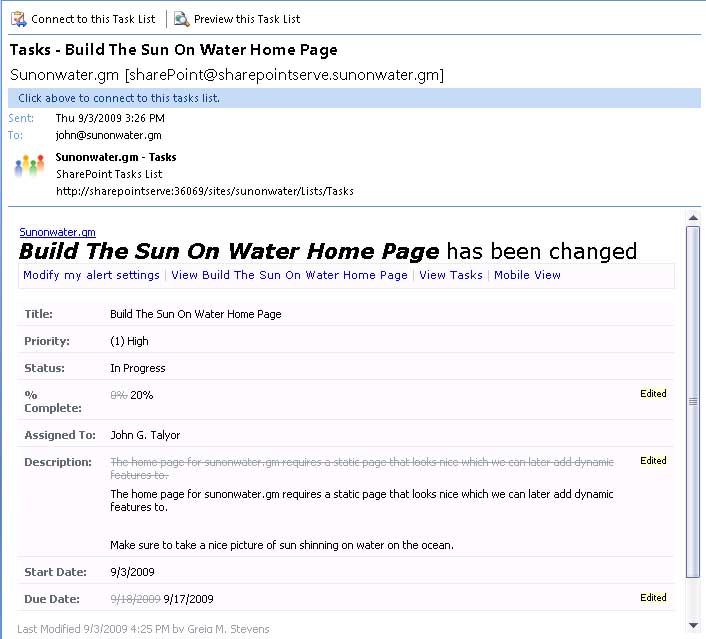
- You can click on modify my alert settings to be taken to the My Alerts on this Site page.

Tags: Alert Me, OOTB, Tutorial
Posted in OOTB | No Comments »
September 13th, 2009
SharePoint has a feature called Alert Me that allows you to subscribe to email alerts based on a variety of criteria such as when a SharePoint List item is added, modified or deleted.
They differ from reminders in Outlook which you can schedule, for example to remind you of a Calendar Event or a Task due date, in that you recieve SharePoint alerts based upon a modification of an item in a list rather than on a schedule.
You can either subscribe to be alerted to modifications to every item in a list or to a single item in a list.
Subscribe To An Alert for Every Item in a list
- To subscribe to an email alert click on the Actions pull down menu on any SharePoint list and click on the Alert Me menu item
- The Alert Me webpage allowing you to configure an email alert will open.

Subscribe to an Alert for one Item in a List
- To create an alert for one item on a list you can right click on item and click on the Alert Me menu item.

- Alternatively if you have clicked on the item and you are currently viewing the item, you can click on the Alert Me link to create an alert for that item.

Configure The Alert
- Begin by entering a title for your alert. The title will appear in the subject of the email.

- By default your user name will appear in the list of users and groups the alert will be sent to however you have the option to send alerts to other users or groups.

- When adding a user or group press enter or click on the check names button
which will verify you have entered the correct name.
- In the event you have entered an incorrect name, an error message written in red will state that “no exact match was found”.

Select People and Groups Webpage Dialog
- Alternatively you can click on the browse button
to bring up the Select People and Groups Webpage Dialog which allows you to enter a full or partial name, even as small as one letter, and perform a search to find the person or group you are looking for.
- To perform a search enter a name in the Find textbox and click on the search button.

- Double click on a user or select multiple users by clicking while holding control or shift and click on the Add-> button at the bottom of the Dialog to add the user(s).
- You can find and add as many users or groups as you like and then click OK to return to the Alert Me configuration page.

Refine Your Alert
- The remaining selections on the Alert Me page allow you to configure when and why you are to be alerted.
- In the Change Type section you can select from 4 different criteria such as to have an email alert on all changes or when existing items are modified.
- If you want to have alerts on two different Change Type criteria than you must create a completely new alert after completing the first one.
- You can create as many alerts as you want for any given SharePoint list and it is common to create many alerts for a given list to get only the alerts you are needing.

- Depending on the type of SharePoint list such as a Calendar or a Task list you have a selection of different possibilities to choose from.
- For a Task list you can can configure an alert to be sent with various criteria such as when “Anything changes” in the task or when “A high priority task changes”.

- With Alerts you can suffer from email overload so there are options to send a daily or weekly summary at a given time of day.

- To complete creating your alert press OK at the buttom of the page.
- An email will be sent to you account notifying you that your alert has been created.

The Alerts feature has several limitations:
- You have limited choice over when the alerts are sent out (immediately, daily, weekly) and you can’t do the following:
- Setup alerts for only items that meet certain criteria, i.e. High priority open issues or only when a status changes to a certain value.
- Alter the text of the email Alert and insert fields from the list into the message.
- Enforce alerts – users have to subscribe to themselves (although you can get 3rd party web parts to do this)
- Alert users who are not in the SharePoint user database (i.e. users who may just browse the site anonymously or who may not even have access to the site)
Tags: Alert Me, OOTB, Tutorial
Posted in OOTB | No Comments »